If your Galaxy S25 Ultra is not charging after an update, start by restarting the phone, testing a compatible charger and USB-C cable, and checking for overheating or a charging-port warning. If charging worked normally before installing a software update, a software bug or background process could be contributing to the problem. However, a faulty cable, debris in the port, moisture detection, or a battery protection setting can cause similar symptoms.
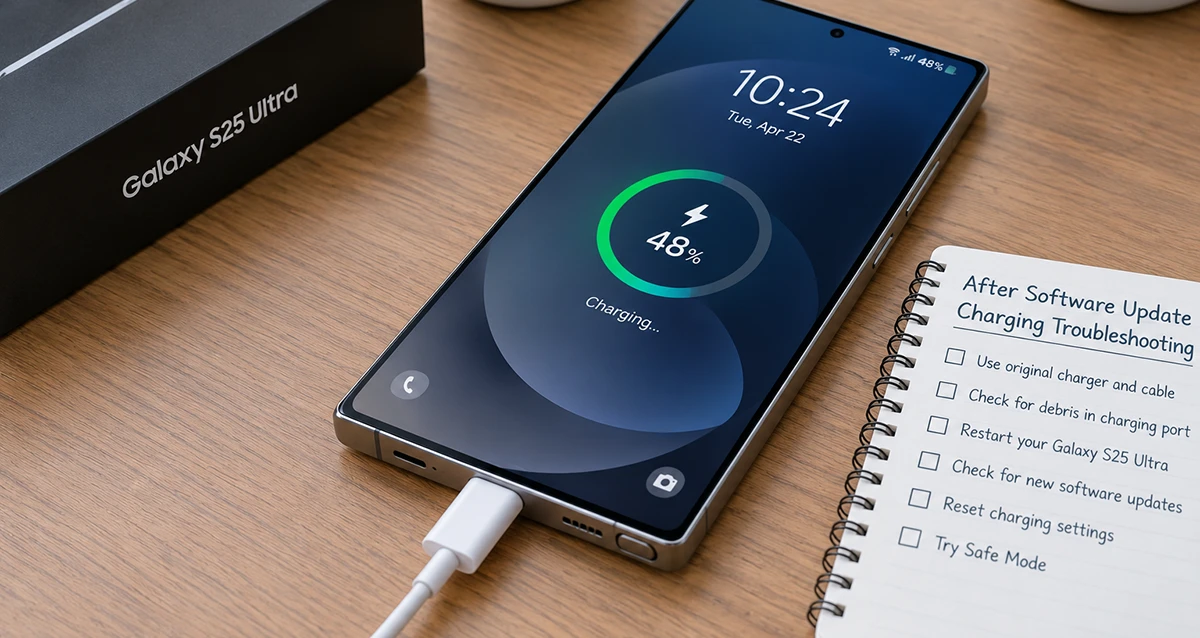
Follow these nine troubleshooting steps to fix a Galaxy S25 Ultra that will not charge, charges slowly, stops charging intermittently, or no longer supports fast charging after a One UI or Android update. Try the simple checks first before considering a factory reset.
Why Is Your Galaxy S25 Ultra Not Charging After an Update?
Several factors can cause charging problems after a software update:
- Software bugs: A firmware issue may interfere with charging behavior or charging-speed detection.
- Background activity: Apps and system processes may use more power than usual after an update, making the battery charge slowly or appear stuck.
- Charger or cable problems: A damaged cable, incompatible adapter, or loose USB-C connection can prevent normal charging.
- Overheating: Charging may slow down or stop temporarily when the phone becomes too hot.
- Charging settings: Fast charging may be disabled, or Battery protection may limit the maximum charge.
- USB-C port issues: Dust, debris, moisture detection, or physical damage can interfere with charging.
Reports from some Galaxy S25 Ultra owners describe charging and battery problems following particular software updates. These reports do not confirm that every affected phone has the same software fault, so it is important to rule out common charging problems first.
How to Fix Galaxy S25 Ultra Not Charging After Update
If your Samsung Galaxy S25 Ultra is not charging after a software update, the problem may be caused by a temporary system glitch, a faulty charging cable, a USB-C port issue, or a change in charging behavior after the update. In most cases, you can troubleshoot the problem without resetting your phone or losing your data.
Start by checking the charger and cable, restarting your phone, and inspecting the charging port. If the phone still does not charge, follow the troubleshooting steps below to identify the cause and find the appropriate fix.
1. Restart Your Galaxy S25 Ultra
Restarting the phone is a useful first step if charging stopped working after installing an update. It can clear temporary software glitches and restart system services involved in charging.
- Disconnect the charging cable.
- Press and hold the Side button and Volume Down button together.
- Keep holding until the Samsung logo appears.
- Release the buttons and allow the phone to restart.
- Connect a compatible charger and check whether charging resumes.
If the phone is frozen, this button combination forces a restart rather than erasing your data.
If charging works after restarting but stops again later, continue with the software and accessory checks below.
2. Check the Charger, Cable, and Power Outlet
A software update may coincide with a charger problem, so test the physical charging equipment before assuming the firmware is responsible.
- Disconnect the charger from the phone and power outlet.
- Inspect the USB-C cable for damage, bent connectors, or loose connections.
- Try a different wall outlet.
- Test another known-good, compatible charger and USB-C cable.
- Connect the phone directly to the wall charger instead of a computer USB port or hub.
Use a reputable charger and cable that support your Galaxy S25 Ultra’s charging requirements. If the phone charges normally with another accessory, the original cable or adapter may be the problem.
If charging is slow, check whether the phone displays a charging notification and whether the battery percentage increases over several minutes.
3. Inspect the USB-C Charging Port
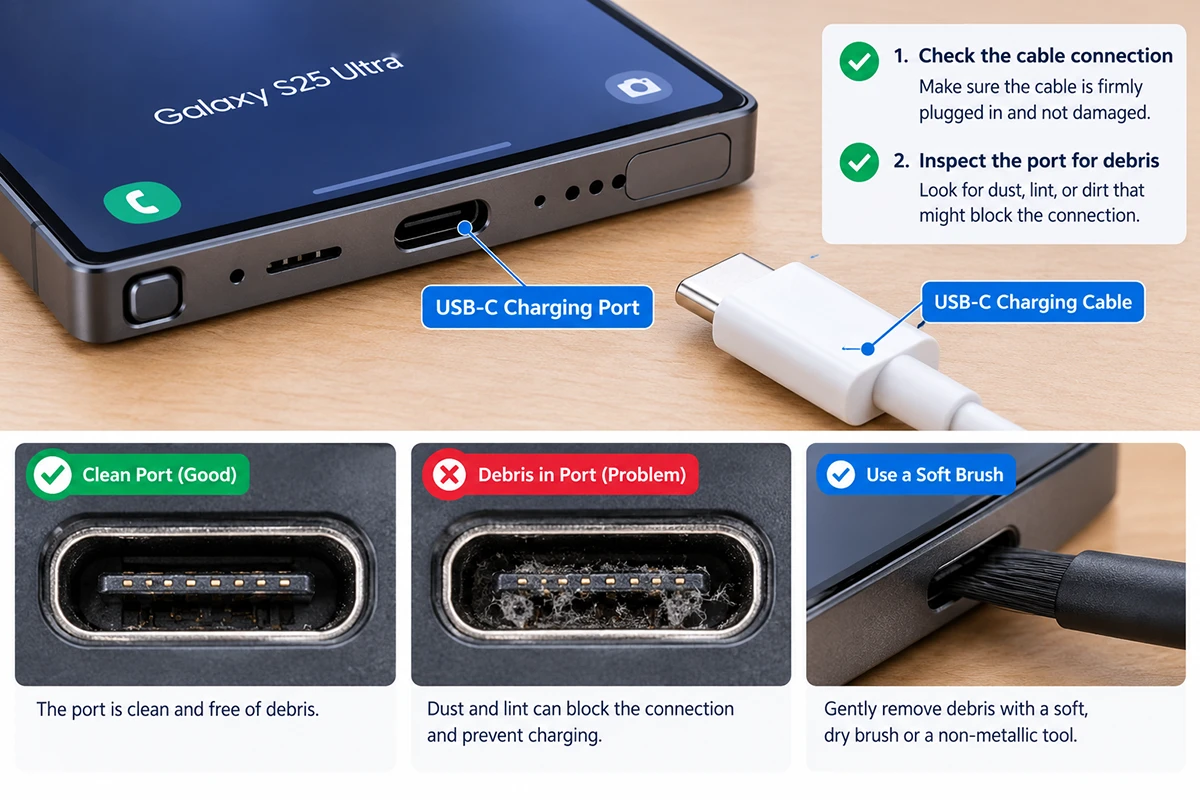
Dust, lint, moisture, or a damaged port can prevent the charging cable from making a reliable connection.
- Disconnect the charger.
- Use a flashlight to look inside the USB-C port.
- Check for visible debris, moisture warnings, or signs of damage.
- If the port may be wet, disconnect the cable and allow the phone and port to dry naturally.
- Try charging again once the port is dry.
Do not insert metal objects, scrape the contacts, or use liquids to clean the port. Avoid forcing the cable into the connector.
If the phone repeatedly displays a moisture warning despite appearing dry, or the connector feels loose, seek professional inspection rather than repeatedly reconnecting the cable.
4. Let Your Galaxy S25 Ultra Cool Down
The phone may reduce charging speed or temporarily stop charging when its temperature rises too high.
This can happen after an update if the phone is processing data, synchronizing apps, restoring backups, or running demanding tasks in the background.
To check whether temperature is affecting charging:
- Disconnect the charger if the phone is unusually hot.
- Stop gaming, video recording, navigation, or other demanding activities.
- Remove a thick case if it traps heat.
- Place the phone in a cool, well-ventilated area away from direct sunlight.
- Wait until it returns to a normal temperature before charging again.
Do not put the phone in a refrigerator or freezer to cool it rapidly.
If the phone becomes extremely hot, shows a battery swelling warning, or smells unusual, stop using and charging it and contact Samsung support.
5. Check Fast Charging and Battery Protection
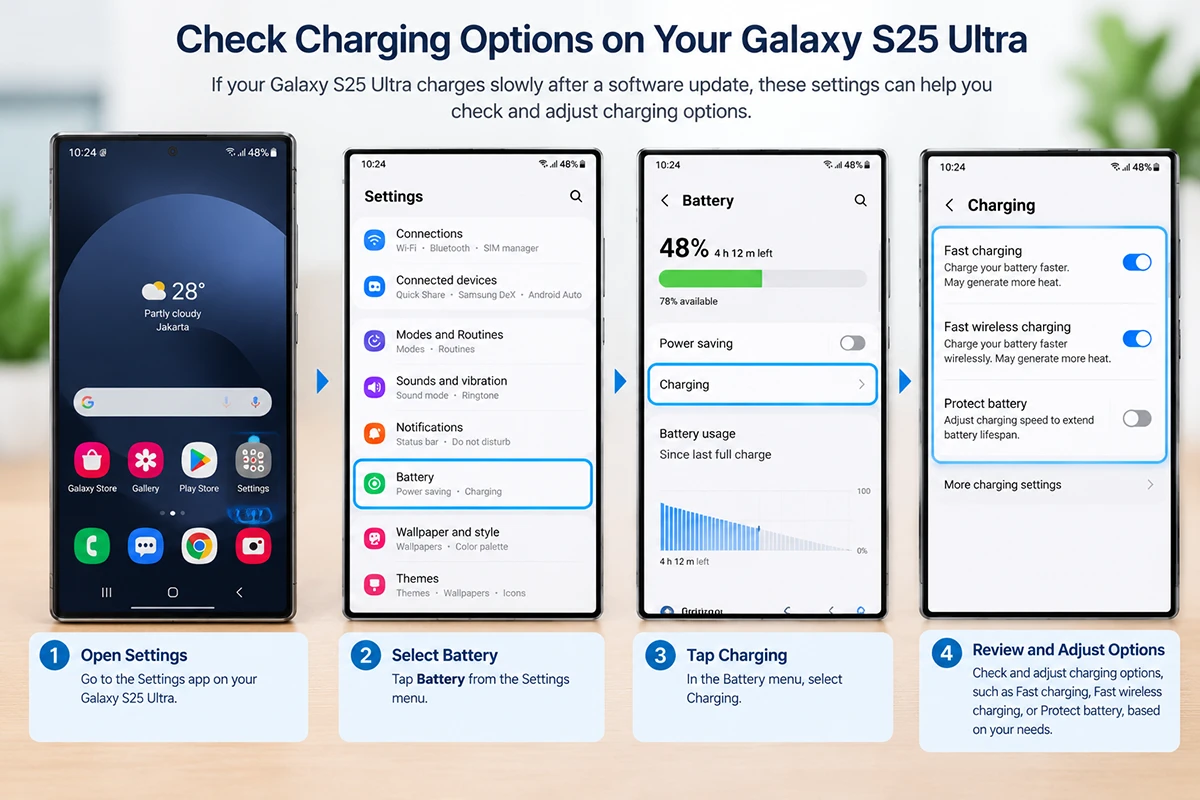
If your Galaxy S25 Ultra charges but no longer charges as quickly as before the update, review its charging settings.
Check fast charging:
- Open Settings.
- Tap Battery.
- Open Charging settings.
- Make sure Fast charging is enabled, if available.
The exact wording and menu layout may vary by software version. Use a compatible adapter and cable that support the desired charging speed.
Check Battery protection:
- Open Settings.
- Tap Battery.
- Select Battery protection.
- Review the active mode and charging limit.
Battery protection can intentionally limit charging to preserve battery longevity. If the phone consistently stops at a configured limit, this setting may explain the behavior rather than a charging failure.
Change the setting only if you need to and understand the effect on battery longevity.
6. Check for Another Software Update
If the charging problem began immediately after a software update and the charger works with other devices, check whether Samsung has released a newer firmware version.
- Connect your phone to a stable Wi-Fi network.
- Open Settings.
- Tap Software update.
- Select Download and install or the equivalent option.
- Follow the instructions if a newer update is available.
Install updates from the phone’s official software-update service. Keep sufficient battery power available and follow any charging instructions shown on the screen.
If no update is available, check Samsung’s support information periodically. Do not assume that a patch exists for your exact problem unless Samsung confirms it.
Avoid installing unofficial firmware or attempting to downgrade the operating system as a first-line fix.
7. Check Battery Usage and Background Activity
If the phone shows that it is charging but the battery percentage barely increases, background activity may be consuming much of the incoming power.
This is especially worth checking if the phone also gets warm or loses battery unusually quickly after the update.
- Open Settings.
- Tap Battery.
- Review the battery usage information.
- Look for apps consuming unusually large amounts of power.
- Update affected apps through Google Play or Galaxy Store.
- Restart the phone and monitor battery usage again.
Some background processing immediately after an update can be temporary. Give the phone time to complete synchronization and indexing tasks, but investigate persistent excessive battery drain.
If one app consistently uses abnormal power, update it or review its background activity settings. Avoid disabling essential system services.
8. Test Wireless Charging
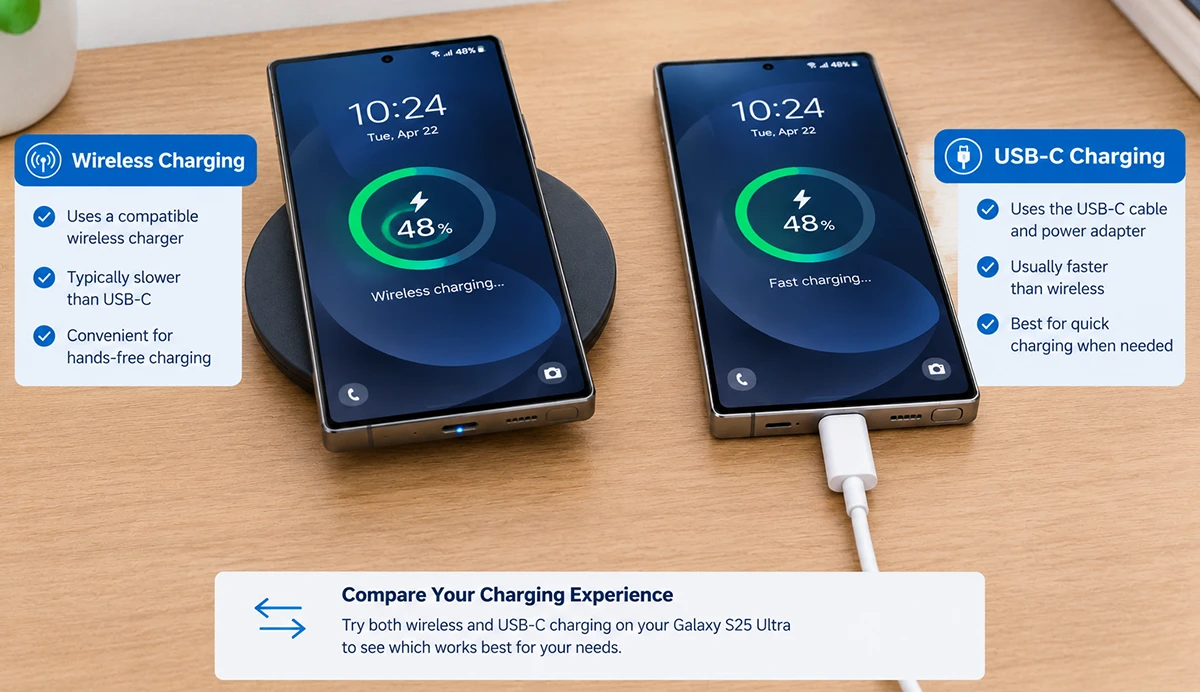
Testing wireless charging can help determine whether the problem is limited to the wired charging path.
- Disconnect the USB-C cable.
- Use a compatible wireless charging pad and power adapter.
- Place the phone in the correct position on the pad.
- Remove magnetic accessories or cases that may interfere with charging.
- Check whether the charging indicator appears and the battery percentage increases.
If wireless charging works but wired charging does not, the USB-C cable, adapter, port, or wired charging circuitry may be involved.
If wired charging works but wireless charging fails, check the charging pad, alignment, compatibility, and any additional software updates. Wireless charging working normally does not completely rule out a hardware issue.
9. Run Samsung Members Diagnostics
If your Galaxy S25 Ultra still does not charge correctly, use Samsung Members to check the phone for available hardware diagnostics.
- Open the Samsung Members app.
- Find Support or Diagnostics; the location may vary by app version.
- Select the available battery or charging tests.
- Follow the instructions on the screen.
- Record any error messages or failed test results.
If diagnostics identify a problem, or charging continues to fail with a known-good charger, contact Samsung support or an authorized service center.
Before considering more drastic software troubleshooting, back up your important data whenever possible.
What If Your Galaxy S25 Ultra Still Won’t Charge?
If none of the nine fixes works, use the symptoms to narrow down the cause.
| Symptom | Possible cause | Next step |
|---|---|---|
| No charging indicator | Charger, cable, port, battery, or hardware fault | Test a compatible charger and cable |
| Charging starts and stops | Loose connection, debris, moisture detection, or software issue | Inspect the port and restart the phone |
| Charging is much slower than before | Temperature, adapter, settings, or background activity | Check temperature, fast charging, and battery usage |
| Phone stops at a particular percentage | Battery protection limit | Review Battery protection settings |
| Wireless charging works but wired charging fails | Wired accessory or USB-C charging path | Test another cable and adapter |
| Phone gets unusually hot while charging | Heavy background activity or possible hardware problem | Stop charging if excessively hot and seek support |
| Charging fails with multiple known-good accessories | Possible port, battery, or internal hardware issue | Arrange professional diagnostics |
Should You Factory Reset Your Galaxy S25 Ultra?
A factory reset should not be your first solution for a phone that stops charging after an update.
First, test another charger and cable, inspect the port, check temperature and charging settings, restart the device, and look for another official update.
A factory reset erases personal data and settings. Consider it only after other troubleshooting has failed, your important files are backed up, and Samsung support recommends or justifies that step. A reset may not solve a firmware bug that requires a manufacturer update.
When to Contact Samsung Support
Contact Samsung support or an authorized service center if:
- The phone does not charge with multiple compatible chargers and cables.
- The USB-C port appears damaged or the connector will not stay securely attached.
- A moisture warning persists after the device has had time to dry naturally.
- Charging repeatedly stops despite normal temperature and correct settings.
- The battery drains rapidly and the phone overheats after the update.
- Samsung Members diagnostics indicate a battery or charging fault.
Tell the technician which software update you installed, when the issue began, which chargers you tested, and whether wireless charging works. This information can help distinguish a software-related issue from an accessory or hardware fault.
Frequently Asked Questions
Why did my Galaxy S25 Ultra stop charging after an update?
A software bug or background process could affect charging, but the cause may also be a damaged cable, dirty port, overheating, moisture detection, or a charging setting. Restart the phone and test a known-good charger before assuming the update is responsible.
Why is my Galaxy S25 Ultra charging slowly after an update?
Slow charging can result from high temperature, background activity, an incompatible adapter, a damaged cable, or disabled fast charging. Check the phone’s temperature, review battery usage, and verify that Fast charging is enabled.
Why does my Galaxy S25 Ultra keep stopping and starting while charging?
Intermittent charging may indicate a loose cable connection, debris in the USB-C port, moisture detection, or a software problem. Try another compatible cable and adapter. If the issue persists, have the charging port inspected.
Can a Samsung software update damage the battery?
A software update can change power consumption or expose a charging-related software problem, but charging issues alone do not prove that the battery has been physically damaged. Persistent overheating, abnormal battery drain, or charging failure warrants further investigation.
Should I downgrade my Galaxy S25 Ultra software to fix charging?
No, not as a first step. Check for an official corrective update and contact Samsung support. Unofficial firmware changes or downgrades can create additional problems and may affect data or device security.
Will a factory reset fix Galaxy S25 Ultra charging problems?
A factory reset may help in some cases involving persistent software or configuration problems, but it cannot repair a damaged charging port, cable, or battery. Back up your data and try the less destructive troubleshooting steps first.
Final Thoughts
If your Galaxy S25 Ultra is not charging after an update, start with a restart, a known-good charger and cable, a charging-port inspection, and a temperature check. Then review Fast charging and Battery protection, check for another official software update, and examine battery usage.
If the problem persists with compatible accessories or the phone becomes unusually hot, seek Samsung support rather than repeatedly attempting to charge it. A careful diagnosis can help determine whether the issue is software-related, caused by charging accessories, or requires hardware service.